
Disclaimer: The views and opinions expressed in this article are solely those of the author. The mention of any products, services, or methods does not constitute an endorsement.
Multi-monitor setups have evolved from a niche luxury into a core part of serious gaming and streaming environments. Years ago, most players operated on a single display, occasionally alt-tabbing between applications and hoping nothing crashed mid-match. Today, that workflow feels outdated.
Modern gamers, especially those involved in competitive play or content creation, demand more visibility and control. A single monitor simply cannot handle gameplay, chat, analytics, streaming tools, and community interaction at the same time without constant interruptions.
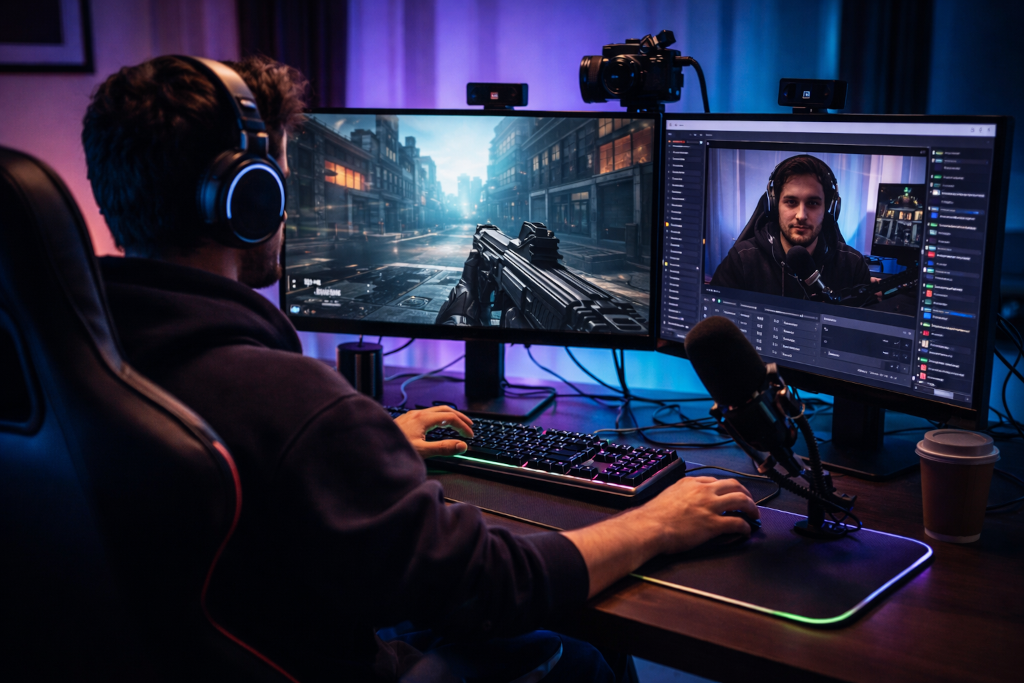
For streamers, additional screens allow for separation of responsibilities. One display handles gameplay, another manages streaming software and alerts, and a third may host chat, moderation tools, or even music and overlays. This separation reduces friction and improves performance both in-game and on stream.
For community builders and esports organizers, multi-monitor setups provide a real-time command center. Leaderboards, match scheduling tools, communication platforms, and live updates can all be visible at once. This kind of visibility becomes critical when managing events or maintaining an active platform.
The Limitations of Native Operating System Tools
Operating systems like Windows and macOS do provide built-in support for multiple monitors, but these features are designed for general users, not power users.
Basic functionality typically includes extending displays, rearranging monitor positions, and snapping windows into halves or quarters. While useful, these features quickly fall short in more demanding scenarios.
Common limitations include:
- Limited window snapping customization
- Inconsistent behavior across different monitor resolutions
- Lack of persistent layouts for specific workflows
- Minimal automation for window placement
- Inefficient task switching across multiple displays
For someone juggling gameplay, streaming software, and community interaction, these limitations create unnecessary friction. Instead of focusing on performance or engagement, users end up managing windows.
Advanced Window Management Tools
One of the most impactful upgrades for a multi-monitor setup is a dedicated window management tool. These tools expand upon the basic capabilities of the operating system and give users precise control over how windows behave.
With advanced window managers, users can:
- Create custom grid layouts tailored to each monitor
- Snap windows into exact positions with hotkeys
- Define zones that go beyond simple halves and quarters
- Automatically assign applications to specific monitors
- Save and load layouts depending on the task
For example, a streamer might configure a layout where their game always launches full screen on the primary monitor, while chat occupies a vertical column on the second monitor and streaming controls sit in a fixed position beside it.
Once configured, this layout can be restored instantly. This eliminates the need to manually drag and resize windows every time a stream begins.
For power users managing multiple workflows, such as gaming, editing, and administrative tasks, the ability to switch layouts quickly becomes invaluable.
Taskbar and Workspace Optimization
The taskbar is often overlooked, but in a multi-monitor environment, it can either streamline your workflow or become a source of clutter.
Default taskbars tend to display all open applications across all monitors, which can quickly become overwhelming. When multiple windows are open across several screens, finding the right one can slow you down.
Enhanced taskbar tools provide features such as:
- Independent taskbars for each monitor
- Displaying only relevant applications per screen
- Improved grouping and labeling of windows
- Better control over window previews and switching behavior
This level of control is particularly useful during live streams or competitive matches where quick access to the correct window is critical.
Instead of searching through a crowded list, each monitor becomes its own organized workspace.
Display Profiles and Workflow Switching
Not every session requires the same setup. A streaming session has very different requirements compared to casual gaming, video editing, or community management.
Display profile tools allow users to save and switch between different configurations instantly.
These profiles can include:
- Monitor resolution and scaling settings
- Refresh rate adjustments
- Display orientation
- Window layouts and application placement
For example, a user might have one profile optimized for competitive gaming with a single high refresh rate monitor active, and another profile designed for streaming with multiple monitors enabled and applications positioned accordingly.
Switching between these profiles with a hotkey or automated trigger removes the need to manually reconfigure settings each time.
Audio and Input Management Across Multiple Screens
Visual organization is only one part of the equation. Audio and input management become increasingly complex as setups grow.
Streamers and power users often need to control multiple audio sources simultaneously. This can include game audio, voice chat, music, alerts, and stream output.
Without proper tools, managing these sources can become confusing and error-prone.
Advanced audio management solutions allow users to:
- Route different audio sources to separate devices
- Control volume levels per application
- Monitor stream output independently from gameplay audio
- Switch input devices quickly depending on the task
For example, a streamer might send game audio to their headset while routing music and alerts to a separate monitoring device. At the same time, voice chat can be isolated for clearer communication.
Input management also plays a role. Power users often rely on customizable hotkeys, macro pads, or secondary keyboards to control different aspects of their setup without interrupting their primary workflow.
Performance and Hardware Considerations
While multi-monitor setups provide clear advantages, they also introduce additional demands on hardware.
Each active display requires GPU resources, especially when running high resolutions or high refresh rates. Background applications running on secondary monitors continue to consume CPU and memory even if they are not in focus.
Key considerations include:
- GPU capability for handling multiple displays
- VRAM usage at higher resolutions
- CPU load from background applications
- Power consumption and thermal output
Balancing performance and usability is essential. Running three high resolution, high refresh rate monitors may look impressive, but it can strain even powerful systems if not managed properly.
Optimizing performance often involves:
- Closing unnecessary background applications
- Using efficient software tools
- Adjusting refresh rates where possible
- Ensuring proper cooling and power delivery
Multi-Monitor Setups for Competitive and Community Environments
For those rebuilding or managing a gaming community, multi-monitor setups provide a strategic advantage.
Instead of switching between tabs or devices, everything can be visible at once. This includes:
- Leaderboards and ranking systems
- Match scheduling tools
- Communication platforms such as Discord
- Website dashboards and analytics
- Live event monitoring
This level of visibility allows for faster decision making and smoother event management. It also improves responsiveness when interacting with community members.
For example, during a live event, one monitor can display match progress, another can handle communication, and a third can track updates or content posting.
This transforms a simple desk setup into a full operational hub.
Streamlining Content Creation and Streaming
Content creation benefits heavily from multi-monitor configurations. Video editing, graphic design, and live streaming all involve multiple layers of information that need to be accessible simultaneously.
A typical streaming setup might include:
- Gameplay on the primary monitor
- Streaming software on a secondary monitor
- Chat and alerts on a third display
- Reference material or scripts on an additional screen
This setup allows creators to maintain focus without constantly switching contexts.
For recorded content, editing timelines, preview windows, and asset libraries can each occupy their own space. This reduces clutter and improves efficiency.
The end result is smoother content production and a more professional output.
The Role of Ultrawide and Hybrid Setups
While traditional multi-monitor setups remain popular, ultrawide and super ultrawide displays have introduced new possibilities.
These displays offer a large continuous workspace without bezels interrupting the view. For some users, this can replace a dual-monitor setup while still providing ample screen real estate.
However, ultrawide setups come with their own challenges:
- Some applications do not scale well across large resolutions
- Window management becomes more important to avoid clutter
- Gaming support can vary depending on the title
Hybrid setups, which combine an ultrawide display with one or more secondary monitors, are becoming increasingly common. This approach offers the best of both worlds by providing a large primary workspace alongside dedicated secondary screens.
The Future of Multi-Monitor Management
As hardware continues to improve, multi-monitor setups are becoming more accessible and more powerful. Graphics cards are better equipped to handle multiple high resolution displays, and software is evolving to meet the needs of advanced users.
Future developments are likely to include:
- Smarter automation for window placement
- AI assisted workspace organization
- Improved integration between applications
- More intuitive user interfaces for managing complex setups
The goal is to reduce the amount of manual configuration required and allow users to focus on their tasks.
For gamers, this means better performance and awareness. For streamers, it means smoother broadcasts. For community builders, it means more efficient management of platforms and events.
Final Thoughts
A multi-monitor setup is not just about adding more screens. It is about creating an environment that enhances productivity, performance, and control.
Without the right tools, multiple monitors can feel overwhelming and disorganized. With the right approach, they become a powerful extension of your workflow.
For streamers, they provide the ability to manage broadcasts seamlessly. For competitive players, they offer improved awareness and multitasking. For those rebuilding gaming communities, they serve as a central hub for managing content, events, and user engagement.
Investing time into optimizing your multi-monitor setup is one of the most practical upgrades you can make. It transforms how you interact with your system and allows you to operate at a higher level across everything you do.