
The Upgrade Cycle Has Changed
For years, PC gaming had a familiar rhythm. A new generation of games arrived, hardware requirements climbed, and players either upgraded or slowly accepted that their old rig had fallen behind. In 2026, that pattern feels different. The desire to upgrade is still there, but the cost of doing so has become harder to justify for many players.
RAM, SSDs, GPUs, and newer platform components have all been affected by a market shaped by AI infrastructure demand, supply pressure, and higher enthusiast pricing. A recent Tom’s Hardware report noted that many PC gamers are delaying full rebuilds because component pricing has become difficult to stomach, with memory and graphics cards especially painful for budget-conscious builders.
That does not mean older rigs are useless. In fact, most PC gamers are not sitting on monster flagship builds. Steam’s April 2026 Hardware Survey still shows 16 GB of system RAM as the most common configuration, Windows 11 64-bit as the leading operating system, and six-core CPUs as a major share of the market. In other words, developers still have to think about midrange and older machines because that is where a massive portion of the audience lives.
For a legacy multiplayer community like Global Warfighter League, that matters. Competitive gaming has never only belonged to the person with the newest GPU. It has always belonged to the player who understands their system, tunes their settings, and knows how to get consistent performance when the match matters.
FPS Is Not Just About Raw Power
When players talk about performance, they usually talk about average FPS. That number matters, but it does not tell the whole story. A system averaging 110 FPS with constant stutters can feel worse than a system locked at 75 FPS with clean frame pacing. Competitive games reward stability. Smooth input, predictable motion, and low hitching are often more important than chasing one big benchmark number.
Older rigs usually struggle in three areas: GPU load, CPU bottlenecks, and memory pressure. The trick is figuring out which one is hurting you the most.
If lowering resolution gives you a big FPS boost, your GPU is probably the main limit. If lowering graphics settings barely changes performance, your CPU may be holding the game back. If the game runs well at first but starts stuttering after several matches, you may be running into memory usage, VRAM limits, background apps, shader compilation, or storage-related loading problems.
The best optimization starts with diagnosis. Before changing everything at once, use a monitoring overlay from your GPU software, Windows Game Bar, Steam, MSI Afterburner, or another trusted tool. Watch GPU usage, CPU usage per core, RAM usage, VRAM usage, and temperatures. The goal is not to become a full-time benchmark scientist. The goal is to stop guessing.
Start With the Settings That Actually Matter
The biggest mistake players make on older hardware is turning down the wrong settings first. Some options are visually expensive but competitively meaningless. Others barely affect FPS but make the game harder to read.
Resolution is the heavy hitter. Dropping from 1440p to 1080p can dramatically reduce GPU load. Dropping from 4K to 1440p or 1080p can be the difference between unplayable and smooth. For competitive games, a clean 1080p image at a stable frame rate is usually better than a beautiful slideshow.
Shadows are another major target. Ultra shadows often cost a lot while adding very little competitive value. In many shooters, reducing shadows to low or medium improves performance while keeping enough environmental detail to read the map. Volumetric fog, screen-space reflections, ray tracing, ambient occlusion, and heavy post-processing effects should be the first luxury settings to cut.
Texture quality is more complicated. Textures mostly depend on VRAM. If your GPU has 8 GB or more, medium or high textures may be fine in many games. If you are on a 4 GB or 6 GB card, modern titles can choke hard when texture settings exceed available VRAM. That does not always reduce average FPS immediately, but it can cause stuttering, delayed texture loading, and ugly hitching during movement.
Anti-aliasing should be tested carefully. Some methods are cheap. Others blur the image or cost more than expected. Motion blur, film grain, depth of field, chromatic aberration, and heavy bloom are usually safe to disable. They may look cinematic in trailers, but they rarely help you win a ranked match.
Upscaling Is Now a Survival Tool
In 2026, upscaling is no longer just a fancy feature for high-end machines. It is one of the most important tools for extending the life of older rigs.
NVIDIA DLSS, AMD FSR, and Intel XeSS all work by rendering at a lower internal resolution and reconstructing the image to a higher output resolution. NVIDIA’s DLSS uses RTX hardware and has expanded into newer features like Frame Generation and Multi Frame Generation on newer GPUs, while AMD’s FSR remains especially important because of its wider hardware support across different GPU brands and generations. Intel XeSS also offers AI-enhanced upscaling and can be useful even outside Intel-only setups, depending on the game and hardware path.
For older rigs, the practical advice is simple: test Quality mode first. If that is not enough, try Balanced. Performance mode can help at higher resolutions, but at 1080p it may make the image too soft in some titles. Competitive players should also be careful with frame generation. It can make motion look smoother, but it does not always reduce input latency the way true rendered frames do. In some games, frame generation is great for single-player smoothness but less ideal for twitchy competitive play.
AMD’s FSR 3 guidance has also recommended having a solid baseline frame rate before enabling Frame Generation, since lower starting frame rates can lead to pacing issues or artifacts. That is the key idea. Upscaling can save an older rig, but it is not magic. It works best when used to stabilize an already playable experience.
The Forgotten Enemy: Background Load
A surprising amount of lost performance comes from outside the game. Browsers with many tabs, launchers, RGB suites, capture software, cloud sync apps, motherboard utilities, overlays, and update services can all steal CPU time, RAM, disk activity, or GPU resources.
Before a serious match, close what you do not need. That includes extra browser windows, unnecessary launchers, video streams, and background recording tools. If you use Discord, OBS, Spotify, or a browser during play, keep them under control. Hardware acceleration in browsers and chat apps can sometimes help, but on older GPUs it can also create conflicts or extra load. Test both ways.
Windows Game Mode is worth enabling for most players. Microsoft says Game Mode prioritizes the gaming experience by reducing certain background interruptions while a game is running. It will not turn an old quad-core into a new flagship CPU, but it can help reduce annoying interruptions and improve consistency.
Also check startup apps. Many systems slowly collect background software over years of use. Open Task Manager, review startup items, and disable anything that does not need to launch with Windows. Do not randomly disable drivers or security tools, but be ruthless with launchers and utilities you rarely use.
Drivers, Shader Cache, and the “Dirty System” Problem
Older rigs often suffer from years of driver leftovers, broken cache files, and bloated software installs. Keeping GPU drivers updated matters, especially for new game releases, but updating over years of old drivers can sometimes create weird behavior.
For most users, a normal clean install through NVIDIA App, AMD Software, or Intel Arc Control is enough. If you are dealing with persistent crashes, strange stutters, or performance that suddenly feels wrong, a deeper cleanup using a trusted driver removal tool may help, but that should be done carefully. Create a restore point first and make sure you have the correct fresh driver downloaded before removing anything.
Shader compilation is another modern pain point. Some games compile shaders on first launch, during loading, or even during gameplay. On older CPUs and slower drives, this can create stutter that feels like bad FPS even when the average number looks fine. Let games finish shader compilation when they offer it. Avoid judging performance during the first few minutes after a major patch or driver update. Sometimes the system simply needs to rebuild cache data.
Storage also matters more than some players realize. An older SATA SSD is still vastly better than a hard drive for modern games. If your system drive is nearly full, or if your game is installed on an aging mechanical drive, stutters and long loads can become part of the experience. A full platform rebuild may be expensive, but moving your most-played competitive games to an SSD can still be one of the most cost-effective upgrades available.
Thermals Can Quietly Kill Performance
A rig does not have to be broken to perform badly. It may just be hot.
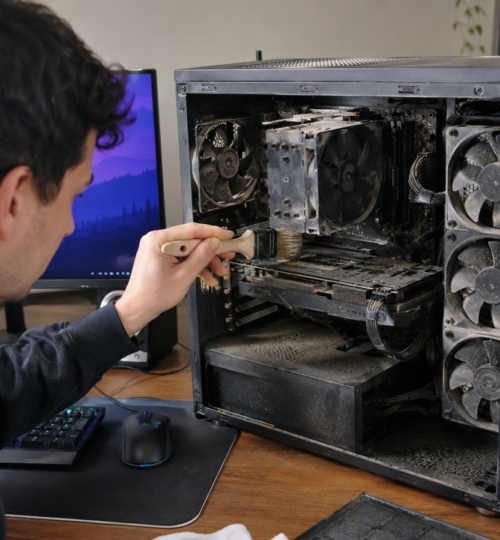
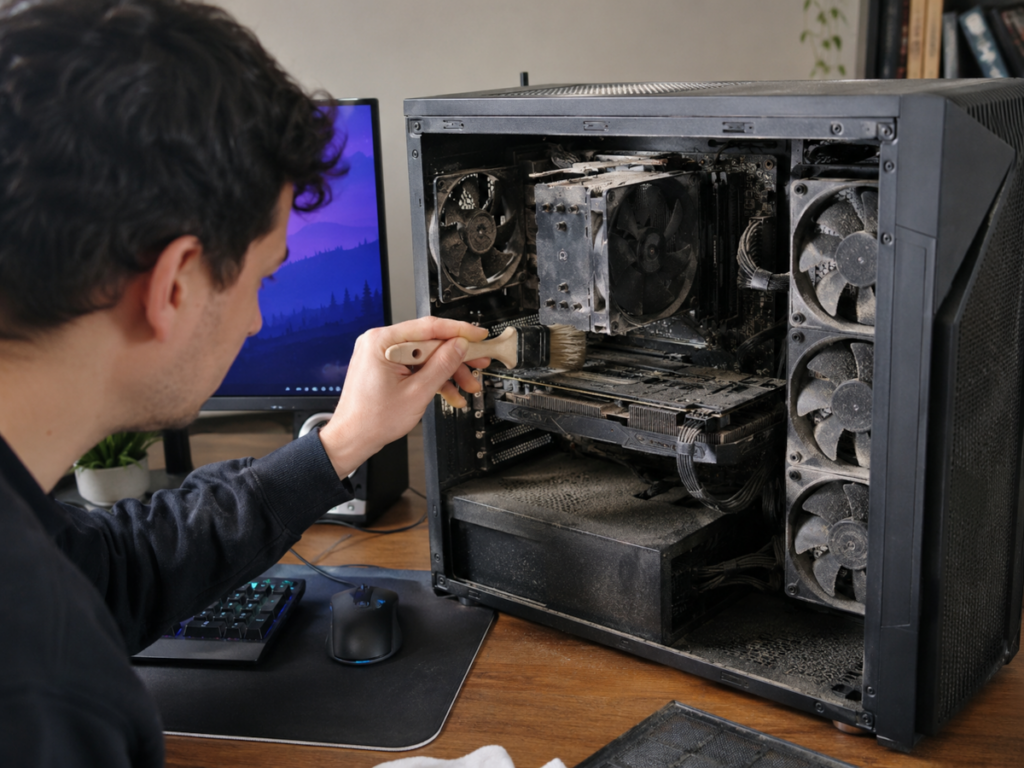
Dust buildup, dried thermal paste, poor airflow, and aging fans can all cause thermal throttling. When a CPU or GPU gets too hot, it reduces clock speed to protect itself. To the player, that feels like random FPS drops, inconsistent input, and performance that gets worse the longer the session goes.
The fix can be boring but powerful. Clean dust filters. Blow dust out of heatsinks. Make sure fans are spinning correctly. Check that the case has a reasonable intake and exhaust path. Keep the PC off thick carpet if the power supply or intake vents are near the floor. For older systems, replacing thermal paste on the CPU can help, especially if the machine has been running for many years.
Laptop players should pay even closer attention. Gaming laptops are more likely to throttle under sustained load. A cooling pad will not perform miracles, but lifting the rear of the laptop and keeping vents clear can help. Also make sure the laptop is plugged in and using its high-performance power profile before judging game performance.
Competitive Settings Are Different From Cinematic Settings
The best settings for a single-player RPG are not always the best settings for a ladder match. Competitive settings should prioritize clarity, stability, and low latency.
That usually means lower shadows, reduced effects, disabled motion blur, sensible textures, and a frame cap your system can actually hold. A stable cap at 120 FPS is often better than bouncing between 90 and 165. If your monitor supports variable refresh rate, use it correctly. If not, experiment with in-game caps to find the smoothest frame pacing.
Reflex, Anti-Lag, Low Latency Mode, and similar features can help reduce input delay depending on your GPU and game. Test them individually. Do not assume every low-latency setting should be stacked at once. Some combinations feel better, while others can create instability or strange pacing.
For esports titles, readability is king. Turn off visual clutter. Keep textures high enough to recognize enemies and map geometry, but do not waste frames on cinematic extras. You are not optimizing for screenshots. You are optimizing for the moment when one clean reaction decides the round.
Upgrade Small Before You Rebuild Big
Hardware inflation makes full rebuilds painful, but small upgrades can still make sense. The best value depends on your bottleneck.
If you have only 8 GB of RAM, moving to 16 GB can still be a meaningful upgrade for modern gaming. If you already have 16 GB, jumping to 32 GB may help with heavy multitasking, modded games, content creation, and some newer titles, but it will not automatically double your FPS. Given current memory pricing pressure, buy only what solves a real problem.
If you are on a hard drive, an SSD upgrade should be near the top of the list. If your CPU is old but your motherboard supports a stronger used chip, a drop-in CPU upgrade may extend the platform without replacing everything. If your GPU is the issue, the used market can be tempting, but inspect carefully. Avoid cards with unknown mining history unless the price reflects the risk and the seller is trustworthy.
The smartest upgrade is the one that removes your actual bottleneck. The worst upgrade is the one that feels exciting but leaves the real problem untouched.
Older Rigs Still Belong in the Fight
The story of PC gaming in 2026 is not just about new hardware. It is about players adapting to a market where the newest parts are not always realistic. That does not make older rigs irrelevant. It makes optimization more important.
A well-tuned older PC can still compete. It may not run every new release at ultra settings. It may not chase 4K with full ray tracing. But with smart settings, clean drivers, upscaling, good thermals, reduced background load, and realistic frame targets, it can still deliver the one thing competitive players care about most: a smooth, responsive match.
That has always been part of the PC gaming identity. We tweak. We test. We squeeze extra life out of hardware long after the marketing cycle says it is obsolete. In a year where hardware inflation is forcing more players to hold onto their rigs, that old-school mindset is not just nostalgia. It is survival.
For communities built around competition, history, and player-driven ladders, that matters. The strongest setup is not always the newest one. Sometimes it is the machine you know inside and out, tuned until it gives you every frame it has left.