
PCIe 5.0 SSDs look absurdly fast on a product page. Sequential read figures now reach roughly 14,800 MB/s on high-end consumer drives, nearly double the headline speed of many premium PCIe 4.0 models. That kind of bandwidth sounds like a clean upgrade for modern gaming PCs. Install the drive, move the game library, and watch every loading screen disappear. The hardware is not that simple.
A next-generation NVMe drive can only hold its advertised speed while its controller and NAND remain inside their safe operating range. Once temperatures climb too high, the drive protects itself by cutting performance. That is thermal throttling. During a large file copy, the result appears as a falling benchmark graph. During a game, it can show up as slower map transitions, uneven asset streaming, texture delays, or a brief hitch at exactly the wrong moment. Cooling an SSD used to feel optional. With top-end PCIe 5.0 storage, it has become part of the build.
The Speed Numbers Hide a Heat Problem
Modern M.2 drives pack a controller, flash memory, power-management components, and often DRAM onto a board barely longer than a stick of gum. There is little surface area to spread heat, and the drive frequently sits beneath a graphics card that is already dumping warm air into the motherboard area.
The controller is usually the hottest component. It manages data movement, error correction, wear leveling, cache behavior, encryption, and communication with the PCIe bus. Pushing more data through that controller requires more electrical work. More work means more heat.
Samsung’s 9100 PRO, for example, is rated for sequential reads up to 14,800 MB/s and writes up to 13,400 MB/s, depending on capacity. Samsung sells both bare and heatsink-equipped versions, and its heatsink model is specifically presented as a way to improve thermal control while maintaining speed.
That distinction matters. The drive may be capable of nearly 15 GB/s, but capability is not the same as sustained delivery. A benchmark completed while the SSD is cool tells one story. A long gaming session inside a warm case tells another.
What Thermal Throttling Actually Does
Thermal throttling is a safety system, not a defect. The SSD monitors internal temperature sensors and reduces performance once its firmware detects that the controller or flash is approaching a limit.
The reduction may happen in stages. The drive can lower controller frequency, reduce transfer throughput, delay commands, or shift into a more conservative power state. If temperatures continue climbing, performance can fall much harder. The purpose is to prevent instability, data errors, and long-term damage.
Samsung explains that its NVMe drives may suppress performance during unusually heavy transfers to protect the SSD through a dynamic thermal-throttling system. Micron also states that the preinstalled heatsink offered with its T700 can allow the drive to run at maximum workload without throttling under typical airflow and ambient conditions.
The key phrase is “typical conditions.” A heatsink still needs somewhere to send the heat. Put the same drive in a cramped case with weak intake airflow, a large GPU above it, and a high room temperature, and the cooling result changes.
Why Games Can Expose the Problem
Most games do not read data at maximum sequential speed for hours. That fact has led some builders to dismiss SSD cooling as benchmark theater. The argument has some truth, but it misses how current games use storage.
A modern title may load thousands of small files, compressed texture packages, geometry, audio, shaders, and world data in rapid bursts. Open-world engines can continue pulling assets after the loading screen ends. Fast travel, respawns, map changes, replay systems, and high-resolution texture packs can all produce intense storage activity.
Microsoft designed DirectStorage to reduce operating-system overhead and help games send large numbers of requests to NVMe hardware with lower CPU use. Its stated design target includes handling up to 50,000 requests per second while using no more than 10 percent of one CPU core. Microsoft also describes DirectStorage as a way for games to take advantage of high-speed drives that can deliver multiple gigabytes per second through many small reads.
That does not mean every DirectStorage game will cook an SSD. It means the storage path is being asked to do more useful work, more quickly, with less software overhead hiding the hardware’s limits.
The problem becomes easier to notice when the drive is already hot. A player may spend an hour in a match, heat the GPU and motherboard area, then trigger a map rotation that suddenly asks the SSD for a heavy burst of data. The drive starts that load near its thermal ceiling instead of at idle temperature. If it throttles mid-transfer, the second map load may take longer than the first.
Stuttering Is Rarely Caused by One Component
Calling every hitch an SSD problem would be sloppy. Game stutter can come from shader compilation, CPU scheduling, insufficient memory, VRAM pressure, network delays, background software, antivirus scanning, engine bugs, or poorly designed asset pipelines. Storage throttling belongs on that list, especially when the symptoms line up with data-heavy moments.
A throttled SSD is most likely to affect gameplay during transitions and streaming events. Texture pop-in may last longer. A door into a new zone may pause. A racing game may hitch while loading the next section of track. A multiplayer title may leave one player sitting at the map screen after teammates have already connected.
Average frame rate may look perfectly normal once everything is loaded. That makes the issue easy to miss. The SSD does not need to reduce the GPU’s normal rendering speed to create a bad experience. It only needs to delay the arrival of an asset the engine expected on time.
The smarter diagnosis is to watch several measurements together. SSD temperature, drive activity, read latency, CPU use, memory use, GPU load, and frame-time spikes should be compared during the same event. A temperature jump followed by a sharp storage-speed drop and a repeated hitch is much stronger evidence than a single benchmark score.
Motherboard Heatsinks Are Not All Equal
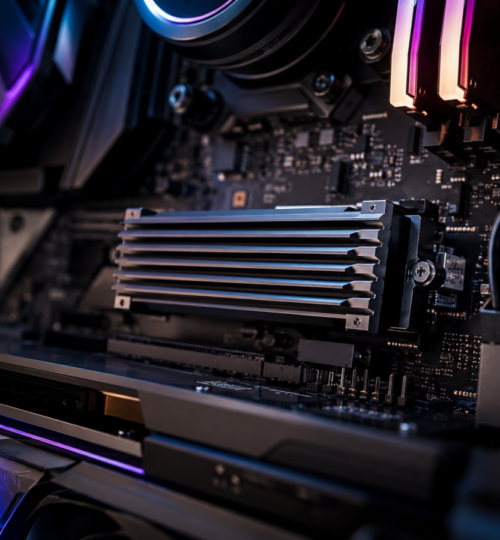
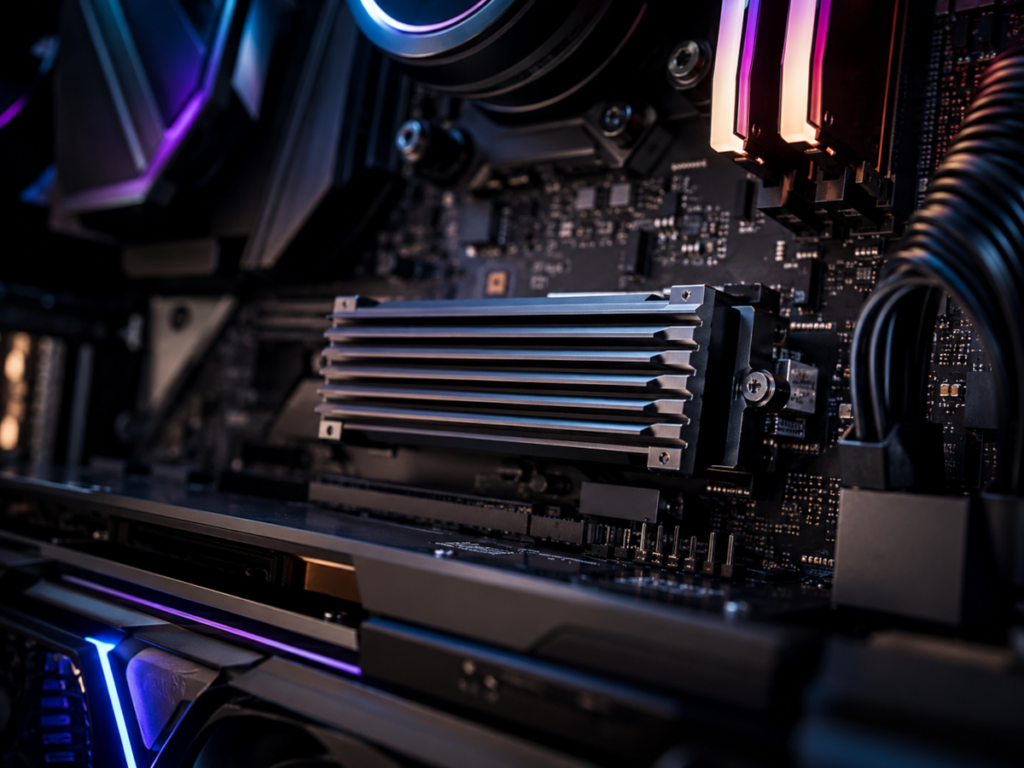
Most current gaming motherboards include at least one M.2 cover. Some are solid pieces of aluminum with a proper thermal pad. Others are decorative plates designed more for visual consistency than heat removal. Mass helps. Surface area helps. Firm contact helps more.
The thermal pad must touch the components it is supposed to cool without bending the SSD. The protective film must be removed. The heatsink needs enough pressure to transfer heat, but not so much that it stresses the drive. Air should also move across the motherboard area rather than stagnate beneath the graphics card.
Placement can change results. The primary M.2 slot usually receives direct CPU-connected lanes and may offer the best performance, but it can also sit directly under a hot GPU backplate. A lower slot may run through the chipset, share bandwidth with other devices, or operate with fewer lanes. The motherboard manual decides which compromise applies.
Builders should also avoid stacking heatsinks. A drive sold with a factory cooler is generally meant to be used as assembled. Removing that cooler may affect warranty coverage, while forcing a motherboard plate over it can create poor contact or physical pressure. Pick one cooling solution that fits the slot correctly.
Passive Cooling Is Usually Enough, but Airflow Decides It
A large passive heatsink is the best answer for most desktop gaming systems. It adds no noise, has no moving parts, and can spread short heat bursts across a larger mass of metal. Passive does not mean airflow-free.
A front intake fan feeding cool air toward the motherboard can make a meaningful difference. So can a rear exhaust fan that removes the heated air accumulating around the CPU socket and graphics card. Even a good M.2 heatsink performs badly if it is surrounded by hot, stationary air.
Active SSD coolers with tiny fans exist, and some extreme PCIe 5.0 drives have shipped with elaborate cooling hardware. They can work, but they introduce extra noise, cables, and another failure point. Tiny fans also tend to produce a sharper sound than larger case fans.
For a normal gaming tower, improving case airflow is usually better than bolting a miniature turbine onto the drive. Active cooling makes more sense in sustained workstation use, dense builds, or systems where the M.2 slot receives almost no airflow.
Laptops and Small PCs Have a Harder Job
Thin gaming laptops, handheld PCs, and compact desktops cannot solve the problem with a tall aluminum block. Their SSDs may sit beneath shields, near batteries, or beside other hot components. Cooling depends on thermal pads, chassis contact, internal airflow, and strict firmware power limits.
A fast drive installed into a small machine may never reach its desktop benchmark numbers. That is not always bad design. The system maker may cap performance to keep surface temperatures, battery drain, and fan noise under control.
Low-power PCIe 5.0 controllers are becoming more important for this reason. Phison’s E37T, for example, is promoted as a Gen5 controller capable of high throughput while consuming less than 2.3 watts during active use, aimed partly at handheld and thin-and-light systems.
Efficiency may matter more than a record-setting burst score in these devices. A slightly slower SSD that holds steady can feel better than a faster model that repeatedly surges, overheats, and drops back.
Buying the Fastest Drive Is Not Always the Best Gaming Upgrade
PCIe 5.0 bandwidth is impressive, but many games still show modest differences between strong PCIe 4.0 and PCIe 5.0 drives. Game engines, decompression work, CPU limits, file structure, and shader behavior can matter more than maximum sequential throughput.
That makes a premium Gen4 drive with good cooling a sensible choice for many gaming builds. It can deliver fast load times, lower heat output, broad motherboard compatibility, and a lower price. A Gen5 model makes more sense for builders who also move huge files, edit high-resolution video, work with large datasets, or simply want the highest available storage performance.
Capacity deserves attention too. SSDs often slow down as they fill, especially when free space for cache and background management becomes limited. A roomy 2TB or 4TB drive may provide a better long-term gaming experience than a smaller flagship model packed close to its limit.
The best purchase is the one that stays fast in the actual machine.
How to Build Around a Hot PCIe 5.0 SSD
Start with the motherboard manual. Confirm which M.2 slot supports PCIe 5.0 x4, whether it shares lanes with the graphics card or chipset devices, and which heatsink assembly is intended for that slot.
Use the supplied thermal pad correctly. Remove every plastic film, align the pad with the controller and memory packages, and check that the heatsink sits flat. Do not assume the factory installation is perfect. Shipping, assembly tolerances, and reused pads can all create gaps.
Then test the drive under realistic conditions. Run a storage benchmark when the PC is cool, but also repeat it after a long gaming session. Monitor temperature and watch for sudden throughput drops. Load the same demanding map several times. Copy a large folder. Check whether the result changes after the case has been heat-soaked by the GPU.
Firmware should be current. SSD vendors release updates that can improve compatibility, thermal behavior, power management, and stability. Motherboard BIOS updates may also affect PCIe device behavior.
Do not chase the lowest possible idle temperature. Consistency matters more. A drive that idles at 45 degrees Celsius and remains stable under load is healthier for gameplay than one that idles at 35, spikes rapidly, and cuts performance during every large transfer.
Competitive Players Should Care About Consistency
An SSD will not increase aim accuracy or turn a weak team into a champion. It can still affect the rhythm of competition. Tournament systems rotate maps repeatedly. Practice servers reload sessions for hours. Players record footage, update games, move files, and run background applications on the same drive. A storage device that begins the night fast and ends it throttled adds another variable to a setup that should be predictable.
Legacy PC gamers remember waiting through minute-long map loads while hard drives clicked away. NVMe storage removed much of that pain. PCIe 5.0 pushes load times even lower, but only when the drive can maintain its performance.
The next storage upgrade should not be judged by the number printed on the box. Judge it after the GPU has heated the case, the drive has handled several map rotations, and the system is still delivering assets without hesitation.